Become a Instructor

Blogs

logotype
Menu
  • Courses
    • Salesforce Admin
    • Salesforce Developer
    • Salesforce Business Analyst
    • Advance Java Training
    • Buisness Analyst
    • Digital Marketing
    • Oracle DBA
    • QA Testing Course
    • SQL server Training
  • Register
+1-571 989 9489
logotype
  • Courses
    • Salesforce Admin
    • Salesforce Developer
    • Advance Java Training
    • Buisness Analyst
    • Digital Marketing
    • Oracle DBA
    • QA Testing Course
    • SQL server Training
  • Register
  • +1-571 989 9489

Become a Instructor

Blogs

logotype
Menu
  • Courses
    • Salesforce Admin
    • Salesforce Developer
    • Salesforce Business Analyst
    • Advance Java Training
    • Buisness Analyst
    • Digital Marketing
    • Oracle DBA
    • QA Testing Course
    • SQL server Training
  • Register
+1-571 989 9489
  • Courses
    • Salesforce Admin
    • Salesforce Developer
    • Advance Java Training
    • Buisness Analyst
    • Digital Marketing
    • Oracle DBA
    • QA Testing Course
    • SQL server Training
  • Register
  • +1-571 989 9489
logotype
logotype
  • Courses
    • Salesforce Admin
    • Salesforce Developer
    • Advance Java Training
    • Buisness Analyst
    • Digital Marketing
    • Oracle DBA
    • QA Testing Course
    • SQL server Training
  • Register
  • +1-571 989 9489
Author: admin
Home admin Page 9
TECHAvatar of adminadmin0 Comments
Share article:TwitterFacebookLinkedin
1924 Views
221 Likes

How To Export Salesforce Report To Excel

Salesforce admin course
How To Export Salesforce Report To Excel 6

Do you want to share your built-in Salesforce report with external stakeholders? Or do you simply want to visualize your Salesforce data using some external tools, such as Tableau? 

There are several reasons why you might want to learn how to export Salesforce reports to Excel, but the options are pretty limited. 

Keep reading to find out which Salesforce report exporting solution works best for you.

Methods Of Exporting Salesforce Report To Excel 

  • Manually exporting Salesforce report to Excel or CSV
    • This is probably the native functionality that allows you to manually download Salesforce reports to Excel. You can export the raw data as Excel and CSV files or formatted reports as Excel files.
  • Schedule Salesforce data export to build custom reports in a spreadsheet 
    • This is used for custom reporting. You can automate exporting of specific data entities to Excel or Google Sheets. Based on this valuable data, you can create a custom report or dashboard, which will update automatically with every data refresh.
  • Export Salesforce reports via the Salesforce API
    • This is probably a more advanced approach, demanding exceptional coding skills to extract data using the Salesforce API. On the other hand, you can also use the JSON to Excel connector. This will help you avoid any coding; however, you’ll need to map the exported data in Excel.

Opting for Salesforce developer training and Salesforce admin courses will help you learn all of these methods and tricks to master the Salesforce platform and give wings to your career. Register for QuantoKnack’s live, real-world project-based training and certifications.  

Learn How To Export Salesforce Reports To Excel In Lightning Experience

In this section, you will learn how to export Salesforce reports to Export. Follow the simple steps:

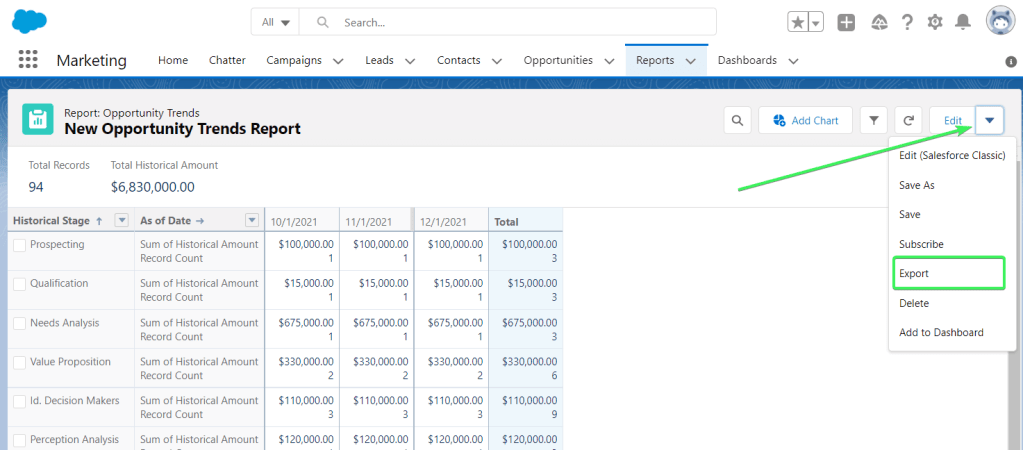
Start with opening a report that needs to be exported to Excel in Salesforce Lightning. Explore the arrow menu on the top right corner of the report, next to the edit option.
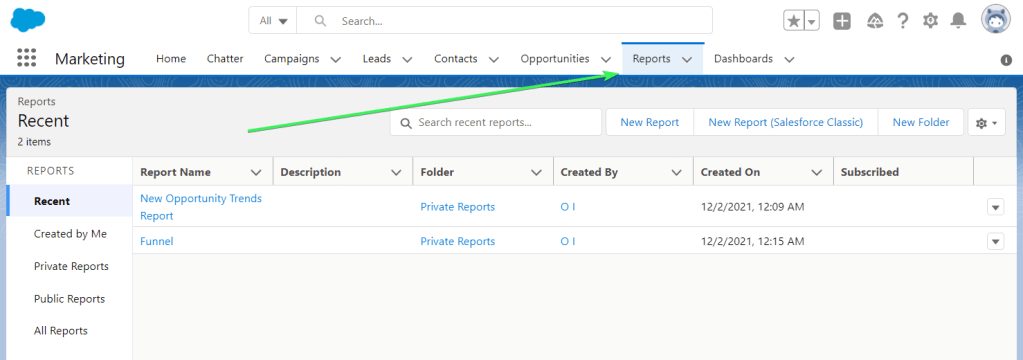
1 reports tab

Go to the Edit drop-down menu on the right side of your Salesforce report and choose Export.
2 export

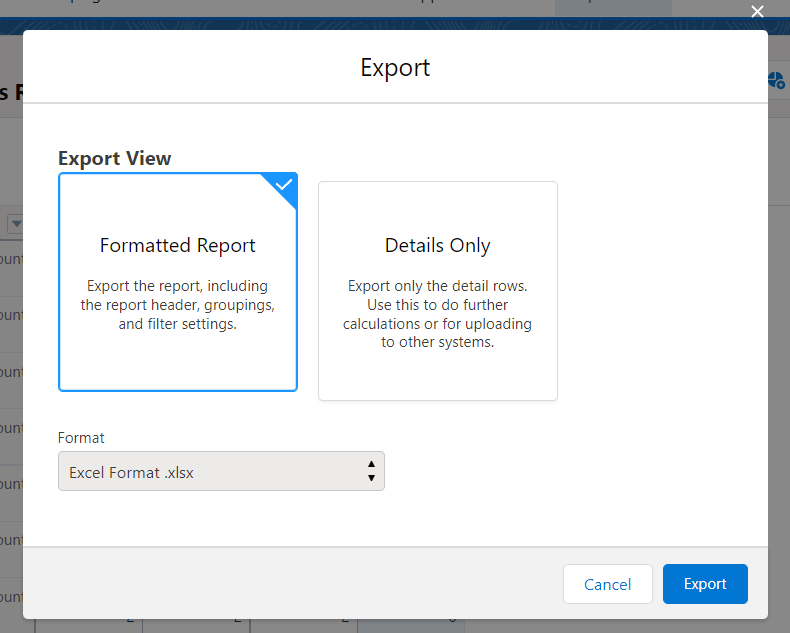
Select the format for exporting the Salesforce report to Excel

  • Formatted Report is readily available for export as an XLSX Excel file
  • Details Only are available for export as XLSX or XLS files, as well as CSV
3 fromat type

Click Export – The excel file with your Salesforce report will be downloaded to your device.

The Export file generated will be in the raw format, while Printable View will maintain the report format in the Excel file, including:

  • Report name
  • Report generator and timestamp
  • Sorting
  • Report filter
  • Grouping and field count
  • Fields summary
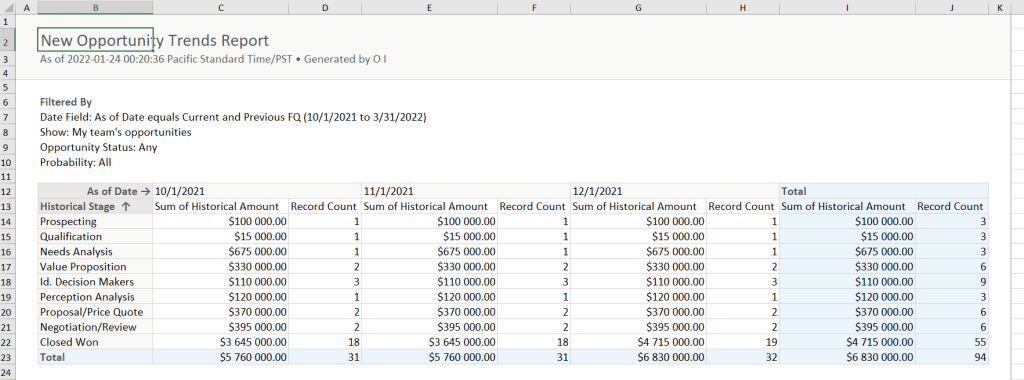
3.1 New Opportunity Trends Report in excel

Salesforce Reports For Excel Export Limitations

  • Up to 5 reports at once.
  • Unlimited rows and columns for Details-only reports in CSV or XLS formats.
  • Maximum 100,000 rows and 100 columns for Details-only in XLSX format or Formatted Reports. 
  • Historical trending reports are unavailable for export.
  • Joined reports can include 2,000 rows and are available for export only as Formatted reports.

What Is A Details-Only Data Export?

This details-only data export will help you export only the data rows with their header.

This is the file format used for extra computing done on Excel or any other spreadsheet program or uploading the file in another program.

The exported data file will be usable for pivot tables, filters, or comparisons with other files.

How to Link Salesforce report to Excel using the Salesforce API

Another solution for exporting Salesforce reports to Excel is the Salesforce REST API. To do this, you’ll have to follow the below-listed steps: 

First, create a Connected App in Salesforce and get an access token 

Using an access token, you can easily send a GET request to the below API URL:

curl “{instance – URL}/services/data/{api_version}/analytics/reports/{report-ID} \

 -H “Authorization: Bearer {access_token}”

Where:

{instance-URL}

is kind of the instance URL, which you got along with the access token, for example, 

https://quantokack.my.salesforce.com/

{api_version}

is the Salesforce API version 

{access_token}

your access token

{report-ID}

is the Salesforce Report Id. If you want to learn the report ID, you need to open the report and check the URL bar. 

This step is more technical as it requires you to work with the Salesforce API documentation and write a script to extract data and map it into your Excel file. 

Conclusion: The above-listed are some of the methods that will help you learn how to export Salesforce reports to excel quickly. Depending upon your expertise and situation, you can go for any method/solution and represent Salesforce reports in Excel format in your management meeting. 

Want to master the world’s leading platform – Salesforce? Enroll in Salesforce developer training and Salesforce admin course offered by QuantoKnack. This live, real-project-based training and certifications will help you thrive in today’s market. 

Don’t miss the opportunity!

READ MORE
TECHAvatar of adminadmin0 Comments
Share article:TwitterFacebookLinkedin
1733 Views
157 Likes

How To Create A Report In Salesforce

As per Forbes, data analytics can bring a lot of benefits to your organization. By leveraging the power of data analytics, you can identify potential risks, improve customer retention rate, and do many more. However, you cannot do data analysis until you generate accurate Salesforce reports. Whether checking your organization’s progress or showcasing results at the board meeting, accurate reporting is critical to your Salesforce success.

But, the reality is that generating Salesforce reports can be pretty tedious, especially if you are relatively new to the platform.

To help you get started, we have created this comprehensive guide on how to create a report in Salesforce. Don’t forget to enroll in QuantoKnack’s Salesforce Admin Course to learn how to create, export, and delete Salesforce reports like a pro.

What Is a Salesforce Report?

A Salesforce report is described as a list of records that contains data in an organized tabular or graphical format. Moreover, Salesforce allows you to create different types of reports to help you analyze and understand your data better. 

Why Should You Master Salesforce Reports?

Accurate reporting has its own place in many business scenarios. Organizations look for it when moving to a CRM system like Salesforce. For example, a small business may need a monthly report to analyze their progress, view new customers/clients, and check the growth of their orders. On the other hand, an enterprise may want to leverage reports to identify which products/services generate the most ROI and which generate the least.

Salesforce makes it much easier for you to report any data related to your customers. However, with so many features and functions, Salesforce admins can feel overloaded with possibilities – making it challenging to decide where to start. Enroll for QuantoKnack’s Salesforce Admin Course and grab the opportunity to learn Salesforce features and functionality as an Admin. 

Types of Salesforce Report

Salesforce reports grow your brand and help you scale. Below are the four basic Salesforce report types you should know. 

Summary – Common & Popular

Salesforce Summary Reports are one of the basic and frequently used types of reports. These Reports are utilized to group rows of data. 

The “Group Field” plays a crucial role in Summary Reports. Grouping is done depending on the value of the selected field. Suppose a property object has a custom field “Status” of picklist type and has two values (Sold, Available). 

Then, a summary report can be generated in two groups by choosing the status field as a grouping field, a ‘Sold’ group, and an ‘Available’ group.

Tabular – Simplest & Fast Export Format

This report suits you if you want to show data without subtotals, calculations, or groupings. It is the simplest Salesforce report type, presenting data in rows and columns. 

Matrix: Most Complicated; Perfect for Large Datasets

Matrix Reports are the most challenging types of reports available on the Salesforce platform. Setting up a matrix report is very time-consuming as well since you have the ability to group data by columns and rows. Like summary and tabular reports, Matrix reports can be utilized with dashboard tools.

The matrix reporting format is a great choice when reviewing data like the number of products sold or revenue totals. Once the report is generated, you can easily skim through the report to get the desired information.

Joined Reports – Comparing Datasets

As the name suggests, Salesforce’s Joined Reports allows you to create two unique reports and “join” the data. The data fetched from each report will be displayed side by side so that you can easily compare the two sets of information.

While many users only generate two reports utilizing the Joined Reports, you can actually add a maximum of five different blocks. These reports can help you gain valuable insights into a specific account.

Joined Reports are the unique type of Salesforce reports that are incompatible with dashboarding tools. This incompatibility is because dashboard components can display information from a single report.

Since many organizations prefer to view data in a visual format, the Joined Reports function is one of the least frequently used types of Salesforce reporting tools.

Component of Salesforce report

Before you start learning how to create a report in Salesforce, it is essential to know some basic components.

Below are the three different components of a Salesforce Report:

Filters

Filters can be utilized to filter the reports to display only the required data. Suppose the requirement is to get a report on sold properties. Then click on Add Filter, select the ‘Status’ field, choose the value ‘Sold’ as shown below, and click on ‘OK.’

Preview

If you chose the four fields: Status, Property Name, Price, and Transaction Type, then the preview for the report is shown below:

Fields

This refers to all the fields of the ‘Property’ object. There are some buttons right to the ‘Fields’ label which are used to group fields. You can additionally search for a specific field in the quick find box. And you can drag and drop the fields to the preview page where you want to report on.

Report Types In Salesforce

Before start creating the report we should know the report types.

Report types are a predetermined amalgamation of related objects and their fields that we can use as starting points when creating new custom reports. In other words, Salesforce report types are containers that include data and fields on which we can create custom reports.

The different report types are available, such as:

  • Standard report types
  • Custom report types

Standard report types

Standard report types are available for designing reports on standard and custom objects and their related objects by default. When creating a new custom field, it is automatically added to standard report types.

Custom report types

Custom report types allow us to build our own report framework in the report wizard; users can create custom reports.

How to Create Reports in Salesforce like a Pro: 6 Simple Steps Guide

Here we have created some simple steps to help you learn how to create a report in Salesforce. Let’s follow it and prepare a valuable report:

Step 1: Create a New Salesforce Report

AXfSwE acamvtjZJPHy80A9LGtf8TN7 bQ0iDn4uIRLcSYy3xqxpo4JnY5scWoGSa4uH05Q8C uffu6Qp4IUzaboOtbyapEu IdaqVmxO9bwpreGrF rbo tx upYLTnu ZlSbX

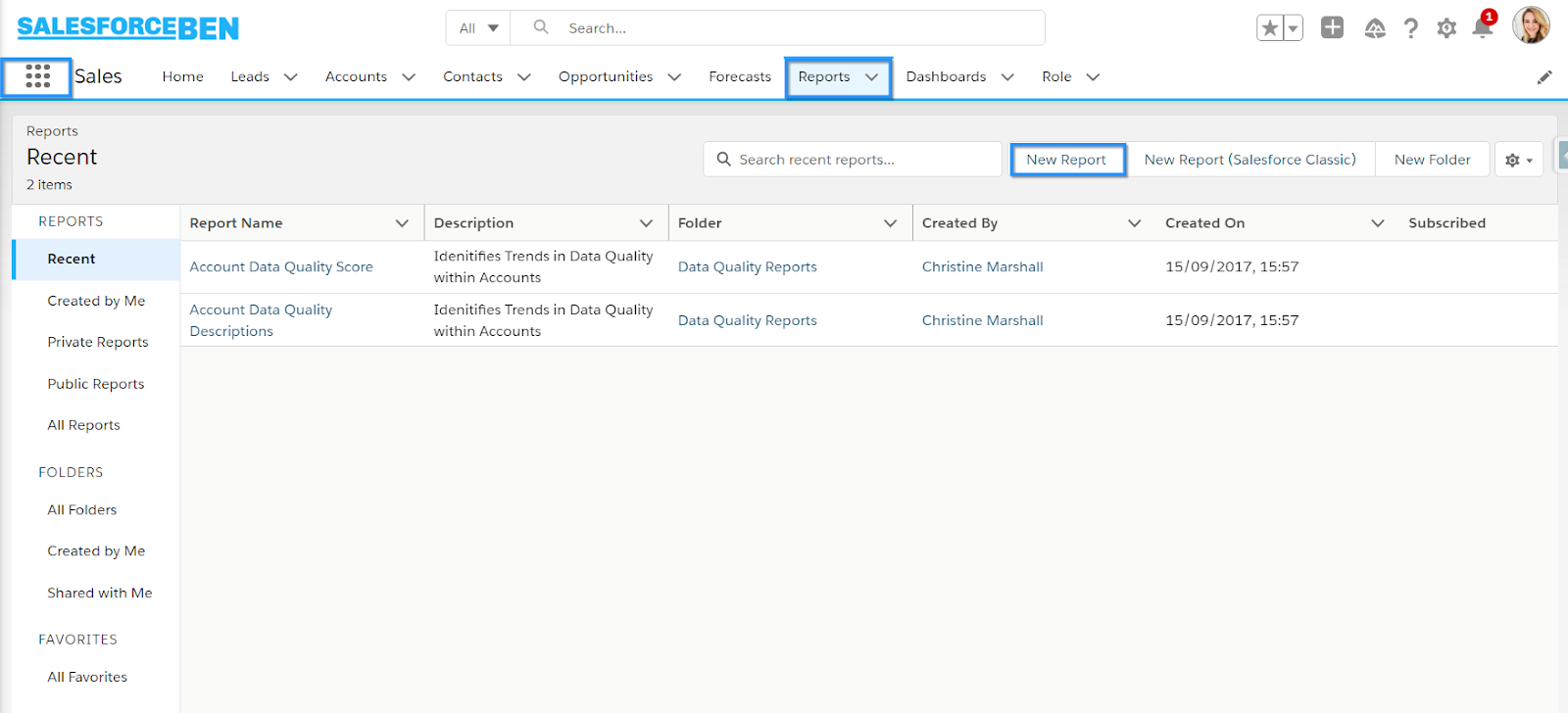
To find a Salesforce report, you will need to look at your horizontal navigation bar for the “Reports” object.

If you can’t find this tab in the bar:

Look for the objects that are placed in the “More” tab;

Click on “New Report,” and you’ll see the below screen.

PNl0rBoj9Yvr6n11XAGJdC25wsvNUtu1CaFqbfJenWwej 8 GNaFTpYSL6bvbfdUr7NpTN5Ntuxd8VD7ZMJGDSh8vbrcdPCoU pEZUOOZDXdmKpWbRO0KGtAxxhyJox ETeWnZdP

Step 2: Choose a Salesforce Report Type

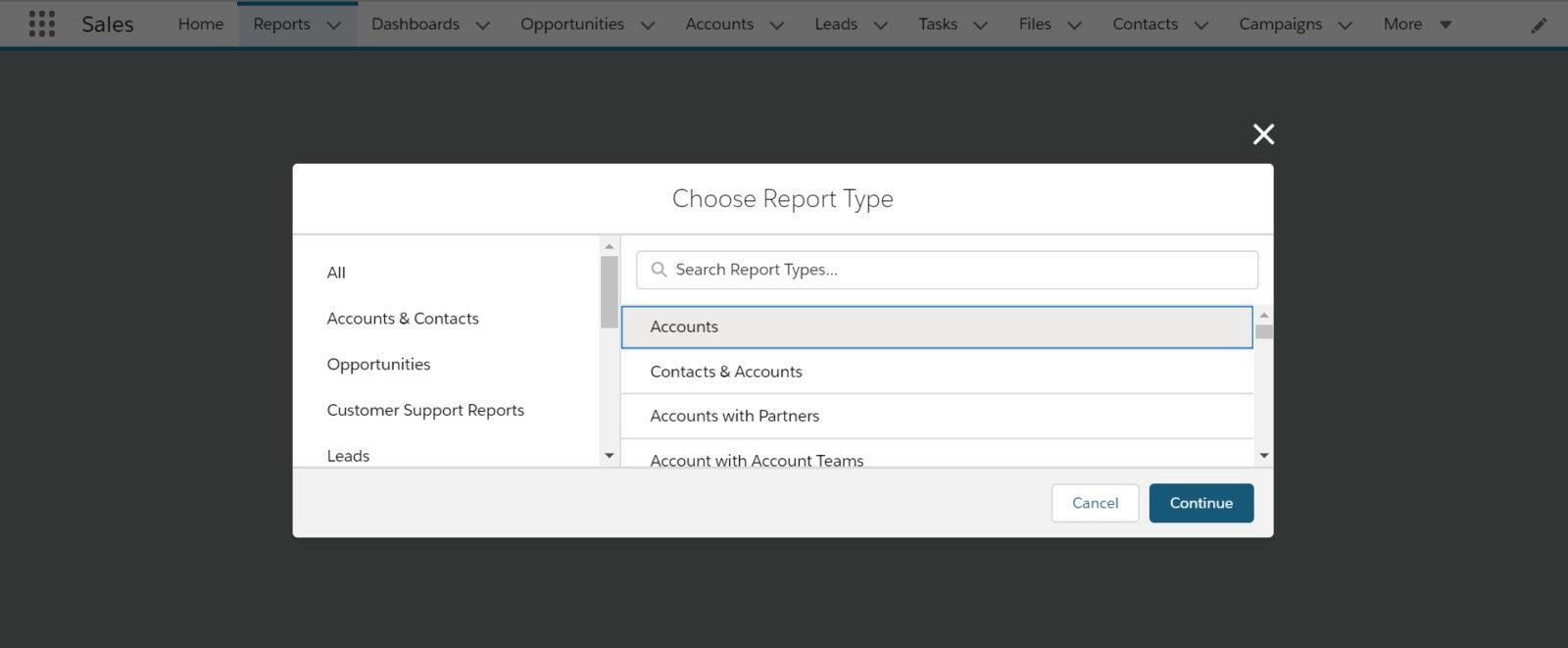
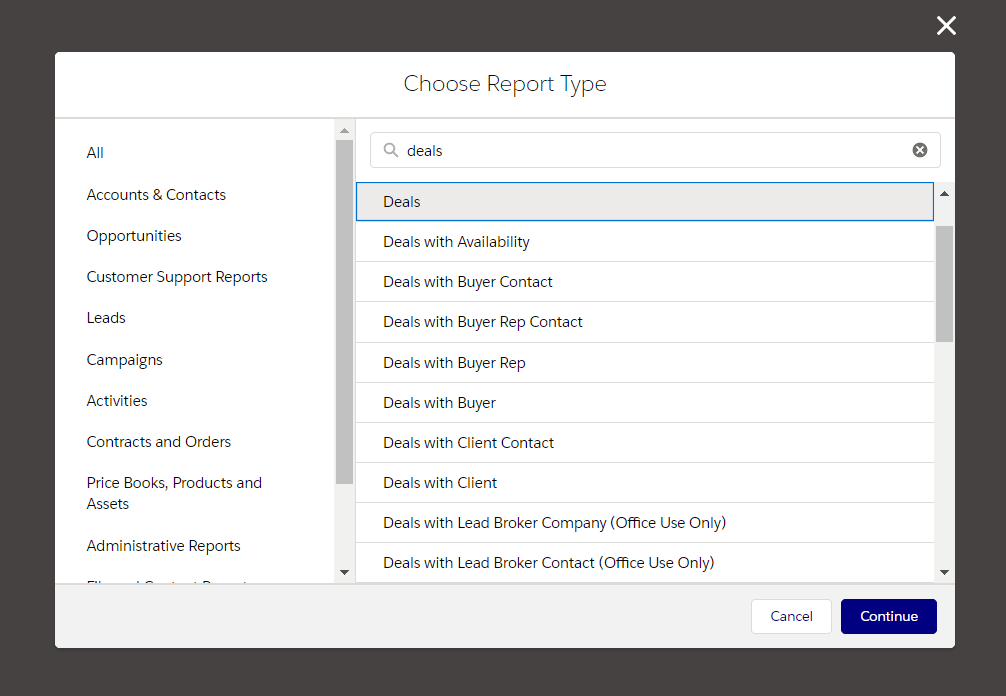
Pick the Salesforce report type and click the “Continue” button. Remember that the list of reports is quite exhaustive and ranges from various types of “Opportunities,” “Accounts,” to “Deals,” “Cases,” etc. To simplify it, you can start typing some relevant keywords. For instance, if you are looking for a report on your deals, you can click and type “Deals” and get the right outcomes.

Select a Salesforce report type with the help of keywords

Step 3: Filter Your Data

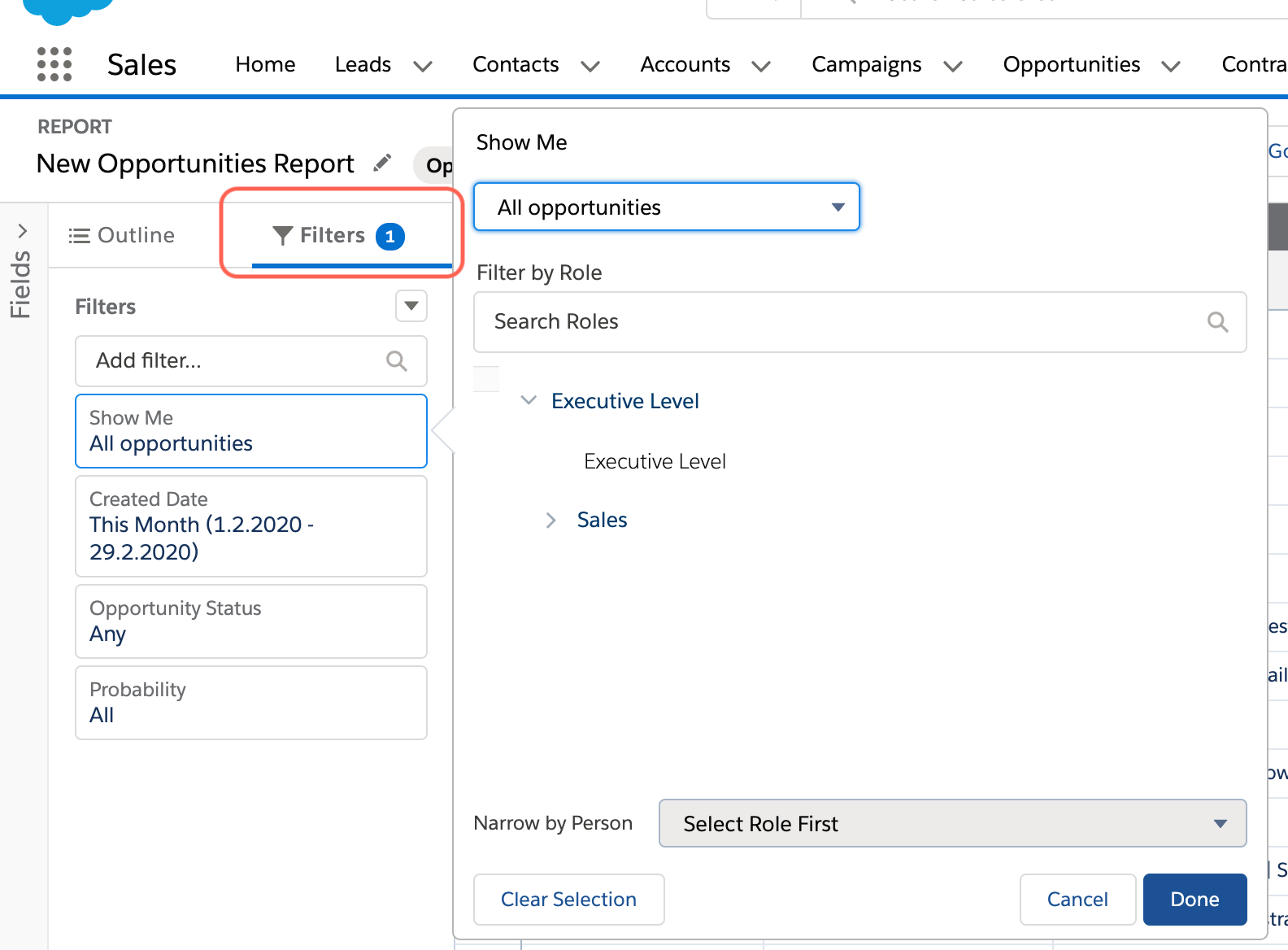
Having a filter is like a blessing if you have extensive data lists. To start choosing the scope of the Salesforce report using the standard Salesforce report filter logic, click the “Filters” panel.

salesforce report filters big screenshot

Below is a quick overview of different filters you can use to define the scope of your Salesforce report:

  • Standard
    • Many objects have standard filters by default. However, some standard filters applied to most objects are Date Field and Show Me.
  • Filter Logic
    • You have to add a condition to let the system know how the fields need to be evaluated. Some filter logic operators consist of And, Or, or Not.
  • Field Filter
    • These filters are specifically for reports, workflow rules, list views, etc. This is helpful for matrix, tabular, or summary reports, where you can easily drag them from the Fields pane to prepare a filter for your report.
  • Cross Filter
    • You can filter a report based on conditions such as With or Without. The system will additionally enable you to add sub-filters.
  • Row Limit
    • You can limit the rows a Salesforce report will return for a tabular report, often utilized as a chart or dashboard table source. 

Just play around with these filters and determine what fields you want to report on.

Let’s say you want to filter reports based on the open deals. Thus, you need to:

  • Find the field called “Status,”
  • Click into the “Status” filter type and determine what status you want to show (e.g., only open deals status, lost ones, won, or all),
  • Click “Apply.”

Step 4: Click the Outline Pane to Display Columns/Fields

The Salesforce Lightning reporting allows you to add or remove columns on your report utilizing a simple drag-and-drop interface. You can find the information you want in the columns on the left side of your screen and then drag the field to the Salesforce report pane on the right.

You can double click or simply drag the field over to the report on the right and to the location you need. For instance, the Deal name is not sufficient in the report. Eventually, you want to add an estimated closed date, so you can just type “Estimated Close Date” in the Columns, and it will fetch your desired outcomes.

Step 5: Group Your Data

If you wish to do the estimated closed date as the grouping, you can type “Estimated Close Date” in the Groups, and your outcomes will be filtered.

When grouping “Deals” by “Estimated Close Date,” furthermore, you can group the data by Day, Calendar Month, Calendar Week, etc.

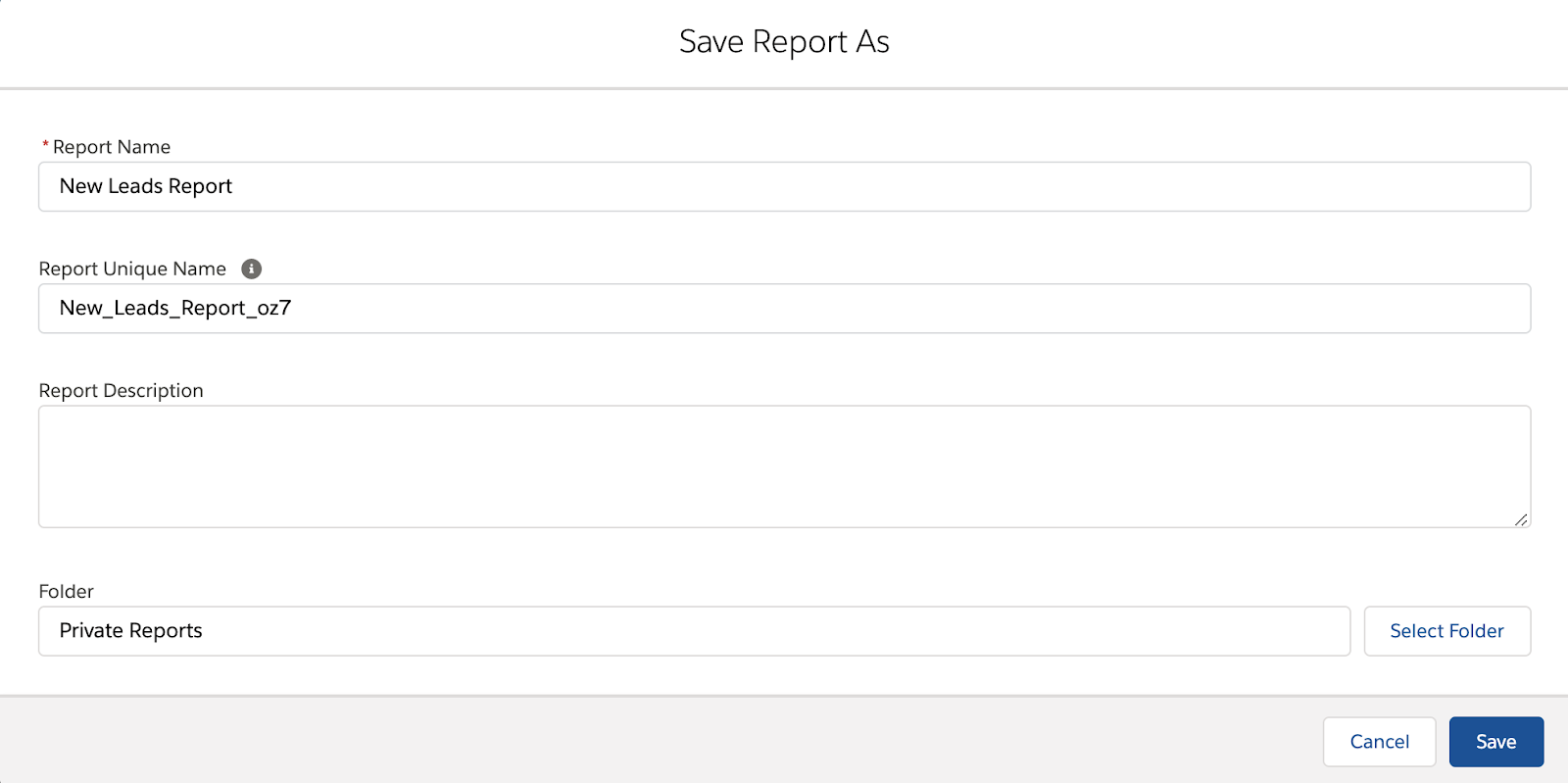
Step 6: Saving Your Salesforce Report

save salesforce report as

In order to save your Salesforce report, you will be required to follow the below steps:

  • Click “Save & Run”,
  • Fill the “Save Report” details by giving it a “Report Name,” “Report Unique Name,” and “Report Description.”
  • Choose a Folder to save your report. If you want to make it visible only to you, you must choose “Private Reports Folder.” However, if it should be visible for your organization, select “Public Reports Folder.”
  • Click “Save.”

If you want to level up your game, Salesforce allows you to create dashboards. These are some combinations of reports displayed side-by-side using charts, tables, gauges, or metrics. 

Think of reports as the raw data and dashboards as the visually appealing layout that everyone in your company will appreciate.

The Major Difference Between Salesforce Lightning and Classic Report Types

Salesforce Lightning – the upgraded version of Salesforce is a complete overhaul of the user interface within Salesforce, and it starts with cleaner esthetics. 

Salesforce Lightning enhance user adoption as it is much cleaner to look at, making it simpler to use. However, it still maintains many functions of its predecessor. 

Further, it’s just human nature to choose prettier things, and with this, the better something looks and feels, the more likely people will be willing to use it.

The interface overhaul also provided one essential change to Salesforce, which aligns with the way everyday users utilize their technology in today’s age. It is optimized for mobile users, enabling them to interact with Salesforce in their preferred way. Regardless of whether that is on mobile or desktop, at the office, at home, or on the go, it makes user adoption extremely easy.

Make Reports That Matter

Salesforce is a robust platform with a comprehensive suite of reporting tools. The above-listed six steps can help you create better reports and keep your team updated on the organization’s progress. 

Once you learn how to create a report in Salesforce and create the reporting layout that works perfectly for your organization, future reports can be automated, allowing you to access the data you need quickly, on your specified schedule, and with no additional effort.

If you are ready to take your data analytics and Salesforce reporting next level, then enroll in QuantoKnack’s Salesforce developer training or salesforce Admin Course. You will learn a lot of techniques and methods that will make your reporting task much easier.

READ MORE
TECHAvatar of adminadmin0 Comments
Share article:TwitterFacebookLinkedin
1602 Views
162 Likes

How To Merge Accounts In Salesforce

Salesforce admin course 2
How To Merge Accounts In Salesforce 17

At some point, almost every enterprise realizes the terrible truth that they have a tremendous number of duplicate records. This creates many issues for users. 

From faulty reporting to double-work on the same account to multiple representatives working on the same lead, this can be very damaging to sales operations as well as users’ confidence in their system. 

When leadership realizes there is a duplication issue, it’s typically so widespread that it leaves users and managers exasperated.

That’s when it’s time to bring in the Salesforce expert who has already completed the Salesforce admin course to save your day. 

In this article, we’ve created a comprehensive and user-friendly guide on 

  • Why do duplicate accounts appear in your Salesforce database?
  • Useful tips to consider before you start
  • How to Merge accounts in Salesforce Lightning

Let’s begin.

Why do duplicate accounts appear in your Salesforce database?

Duplicate accounts can be disturbing. Not only do they impact efficiency, but they are additionally time-consuming. Between all of the connections in accounts, contacts, and sales reps — there is a lot of work to identify, merge, and double-check to make sure all of the connections are in place as they need to be.

A large piece of the puzzle – dealing with duplicate data comes from preventing it from its source. If you can stop duplicate accounts from being added to the system, you’ll significantly reduce your duplication rates throughout your Salesforce data.

Some of the ways that duplicates are commonly added to Salesforce include:

  • Import lists.
    • Duplicate records are usually created from third-party and import lists.
  • Entry by different reps
    • Different sales representatives may get different accounts at different times. They may assume that they are the first to engage with a particular company and thus, create a new account.
  • Integrations & other apps
    • Integrating third-party apps that add new data and accounts to Salesforce may also result in creating duplicate records.
  • Mistakes
    • By mistake, a team member within your organization creates a duplicate account, not realizing that the original account already exists.
  • Form submissions
    • Someone from an organization may fill out a form that creates a new record in your database while you already had a record for that particular account.
  • Lead conversion.
    • When leads are converted, Salesforce will automatically create an account, contact, and an opportunity. Thus, duplicate accounts get created in this process.
  • Organizations go through mergers and acquisitions.
    • When two organizations merge, or one acquires another, you may have to merge non-duplicate accounts as well.

There are many reasons why duplicate accounts may appear in your Salesforce database. Identifying the root cause of those duplicates and stopping it from happening is the first step that any organization with a duplicate record problem should be considered.

One of the easiest ways to prevent the creation of duplicates is to hire a certified Salesforce Admin who will set up rules in Salesforce. This way, he can keep duplicates from being created depending upon the custom ruleset that you prepare, both from imported accounts as well as from manual entries from your team.

Before we look at how to merge accounts in Salesforce Lightning, it is essential to know some major things. 

Things To Know Before Merging Accounts In Salesforce Lightning

De-duping records can possibly be a burdensome process.  Thus, here is a list of a few things that require your attention before you start to merge accounts in Salesforce. These things are also covered in QuantoKnack’s Salesforce admin course, so you can learn it quickly and get certified.

Account Hierarchy

In Salesforce Classic, the account hierarchy is retained from the primary record, while in Salesforce Lightning Experience, the parent record can be chosen to retain. 

Redundant Relationships

Salesforce will pop up a message saying that you have removed the redundant connections while merging accounts. Chatter feeds will be retained from the Related Contacts list on account records.

Related Items, Chatter Feeds, and Attachments

All duplicate records with activities or campaigns are merged in Salesforce with a few exemptions. Chatter feeds are merged from the main record. Salesforce Files appended in the Chatter feed or Files-related list are kept in the merged account.

Sharing Rules

Sharing rules will be applied to the merged account in the Salesforce Professional, Enterprise, Unlimited, Performance, or Developer version. Further, any manual sharing from the primary record is connected to the consolidated account after the merge.

Relationship Groups

Remember that Salesforce Lightning Experience doesn’t support merging records related to the connected groups.

Divisions

If divisions are empowered, the merged record is doled out to the division from the main record except if you select something else.

How to Merge accounts in Salesforce Lightning

When it comes to duplicate records, there are huge differences between the Salesforce Classic and the Salesforce Lightning Experience. 

In Salesforce Lightning, duplicate alerts are shown on the record detail page of an account and contact. These duplicate records are identified utilizing matching rules applied to individual records or duplicate jobs. On the other hand, in Salesforce Classic, duplicate records are identified via manual searches. 

Standard Account Matching Rule

The standard matching rule identifies duplicate accounts using match keys, matching criteria, and a matching equation. It’s by default activated.

For example, just search “Matching Rules” in the quick search box to see all standard account matching rules using a matching equation, match keys, and matching criteria.

Step by Step Instructions: How to Merge Duplicate Accounts in Salesforce Lightning

A user must know a few things before beginning how to merge accounts in Salesforce. For instance, when a user tries to merge two accounts, they have a relationship with a similar contact.

Here are some steps you need to follow for both Account and Contacts matching and merging in Salesforce Lightning.

Step 1: 

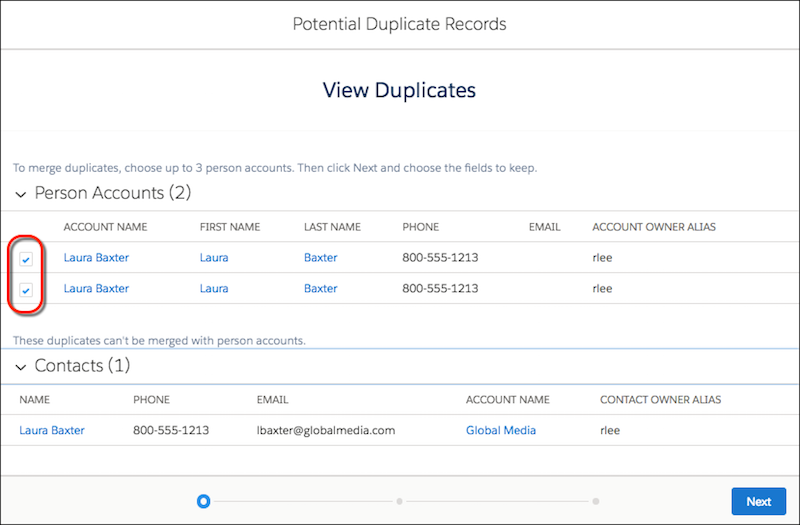
In Salesforce Lightning Experience, you will have to go to a specific account record. If there are any duplicates available, you can just click on “View Duplicates” and see them.

SGQfXdGJcE6Xf4 yCV cTWy ErBzWXt IJmOGaLsNYG uD0xZ37REQ8DRYDNaqPpdxEdwqfLKI7m0JI9EauUagamXVjvOHo lRiF rT1o kFJopnfznDCF SHNma8f6N07KwaC9

However, only the exact same account names are found as potential duplicates in the Lightning Experience.

If you cannot find the duplicates and you need to merge, then switch to Salesforce classic and simply use the Merge Accounts tool.

Duplicate records, with accounts available to merge

Step 2: 

Like Salesforce classic, there are a maximum of three account records that can be merged. Then click on Next.

Step 3: 

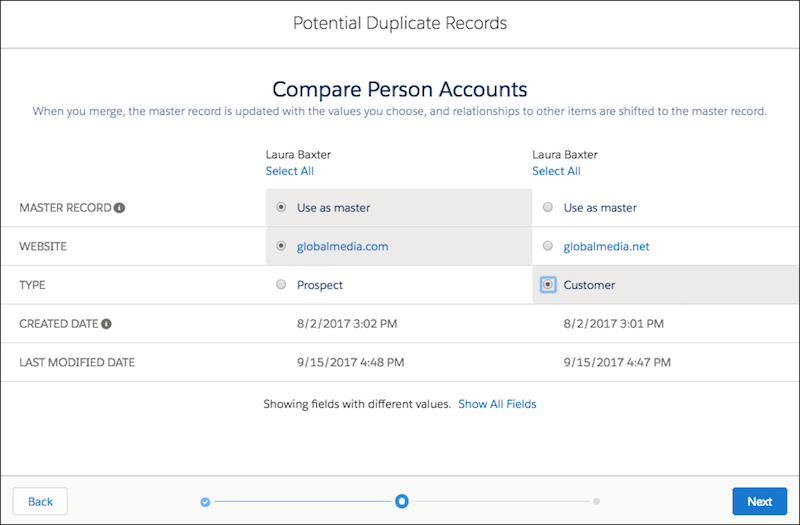
Similarly, you can select one account as the primary record and choose the field values you want to keep as it is. Then click Next.

Three potential duplicate accounts, with option to choose field values from each

Step 4: 

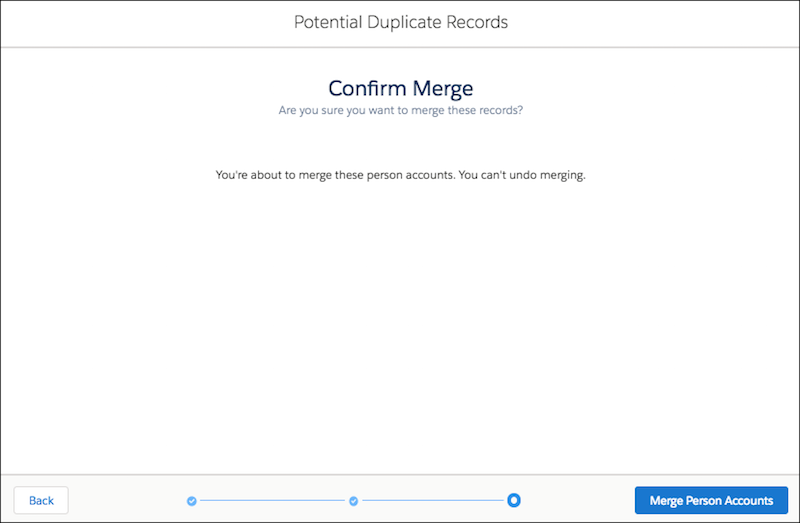
Confirm your options here and start merging. And it’s done!

Merge confirmation for person accounts

Merging accounts in both Salesforce Classic and Salesforce Lightning is simple and straightforward but does have some limitations. First, you cannot merge accounts in bulk, as Salesforce has a limitation on merging more than three duplicates 

simultaneously.

Moreover, surfacing and identifying duplicates can be difficult in Salesforce. While the system finds duplicate accounts with similar names, it does not recognize duplicates based on the data contained in the record, which is usually required to surface all duplicates.

Conclusion

Merging records in Salesforce Lightning Experience is available and useful! As a Salesforce Admin, you need to stay on top of potential duplicates to ensure trustworthy and valuable data that reflect your awesome admin skills (or learn all essential skills in the Salesforce admin course offered by QuantoKnack Training.

You can further empower your users to merge themselves. However, they will need the ‘Delete’ permission for the object in question and Edit on related objects, such as Cases and Opportunities.

Do not forget to benefit from the Duplicate Record Set tab and create reports from the items that are fetched from your Duplicate Rules. Keep in mind they are the solid pillar of this functionality, so you want to inspect and adapt them often to keep them relevant and useful.

Learn all the major functionality and many more real-world scenarios in QuantoKnack’s Salesforce admin course and get certified Salesforce admin. We are preparing you for tomorrow!

READ MORE
TECHAvatar of adminadmin0 Comments
Share article:TwitterFacebookLinkedin
1657 Views
168 Likes

What is a Salesforce Admin?

Salesforce admin course 3
What is a Salesforce Admin? 20

For the past 20 years, Salesforce has been adopted by more than 150,000 world’s largest
organizations, including Amazon, Toyota, American Express, Spotify, NBC Universal, The Red
Cross, and United Healthcare. These companies use Salesforce to manage customer and
sales processes. Thus, the demand for qualified administrators to help manage Salesforce
has increased dramatically.

The majority of these organizations need certified Salesforce Admin Course people to help
them manage the platform and keep things running smoothly. Salesforce recently estimated
a 400% annual increase in demand for Salesforce administrators, so demand for qualified
admins appears to continue to grow.

In this blog post, we will take a look at the details of Salesforce Administrator roles and
responsibilities and how you can become Salesforce Admin Training certified.

Who is a Salesforce Administrator?

A Salesforce Admin or Administrator is a Salesforce-certified expert with hands-on
experience in the Salesforce environment or ecosystem. They have a better understanding
of varying system requirements, stakeholders, and client interests, with the end goal of
assisting users in getting the best out of the Salesforce technology. They are additionally
experienced in using the features of Salesforce to accomplish the goals and targets of an
organization.

A Salesforce admin spends their time making the environment easy for Salesforce users of
all levels, maintaining the platform, and staying updated with the new tools, methods, and
updates in and related to Salesforce.

Think of Salesforce Administrators as a company’s trusted advisors on all things related to
Salesforce. They are the crucial bridge between business and technology.

What does a Salesforce Administrator do?

Since Salesforce can be utilized in many ways, the role of a Salesforce admin can vary from
industry to industry and from organization to organization. However, there are many roles a
typical Salesforce admin fills in their work. They include:

Import new leads, data, and contacts

Since users add leads and other essential data to Salesforce, administrators can design
standards for these processes to ensure data consistency across the organization.

Oversee user profiles and access levels

Salesforce admins have responsibility for the organization’s data, including critical data
about sales and marketing, products and services, purchases, customer demographics, and
other activities. They create user accounts and assign access levels based on roles and

responsibilities within the company. This generally includes onboarding new hires who
want to get access to Salesforce. Further, they handle off-boarding and revoking access for
former employees and others who no longer use Salesforce.

Setup and run deduplication tools

Over time, user behavior and contact data can be duplicated by users, imported lists, and
webform submissions, so it falls to the Salesforce Admin to run deduplication mechanisms
to scrub the data and remove duplicates

The frequency of different organizations running this process will vary depending on their
tools. Some operate automatically in real-time, while others are begun at a regular interval
(generally at least once a week) to run Salesforce at its full speed

Testing system updates in the sandbox

Salesforce is designed to update on a regular basis automatically. Still, the best admins
proactively test and install these updates in a sandbox to understand changes and find new
capabilities prior to going live. This ensures that the organization’s data stays as secure as
possible and Salesforce runs at full capacity.

Create processes for reporting

What is a Salesforce Admin? report

Salesforce Admins are the experts in CRM data management. Organizations rely on them to
keep data clean and organized and pull data as required to help support training efforts and
make business decisions.

Run database maintenance reports

Salesforce administrators keep doing all kinds of tests and reports to ensure the database
stays in great condition. These tests and reports might include APEX tests, field utilization
reports, role and profile reports, and other industry-specific reports.

The admin’s system knowledge and access to data make them the go-to resource for this
sort of activity, and they frequently automate processes for the tests and reports.

Other responsibilities of Salesforce Admin include:
● Solving new issues and challenges as they arise
● Process setup and optimization
● Create and maintain record archives
● Specialized responsibilities

What Are the Benefits of Becoming Salesforce Certified Administrators?

There are four basic certifications intended for Salesforce Administrators. Getting each one
shows mastery of certain skills, knowledge, and expertise within the Salesforce platform.
Further, obtaining one or more of these Salesforce certifications signals to employers that
you have the required skills and knowledge to support the organization’s Salesforce
installation. Here, briefly, is what each one covers:

More career opportunities

The research demonstrates a 400% annual growth rate for admins and the average USA
starting salary of $79,000. It is actually a career path for people who love to learn and
professionals who enjoy using the latest technology.

Some people have their Salesforce Administrator Training Certificate to supplement their current
role in a company – and potentially get a higher salary. Others utilize it to enrich their
resume and find a new position.

Better salary and growth opportunities

As per the Indeed report, the average salary of a Salesforce admin training certified
professionals in the US is $123,000 per annum. Organizations invest a lot to define a
Salesforce administrator’s responsibilities; a six-figure salary is a fantastic start to a career as a Salesforce administrator.

More attractive to hiring managers

As per the recent Salesforce Salary Survey, nearly 77% of the experts who administer the
Salesforce applications for their organization has at least one certification. Thus, if you’re
competing with others for a position, then having a certificate can look attractive to hiring
managers when you’re compared with those who do.

More confidence working with Salesforce

Obtaining a Salesforce Admin Training certification will help give you the knowledge you
need to support your organization better. You’ll better know what your system can and
cannot do and how users get the most from Salesforce. In a survey done by Mason Frank,
about 37% of respondents reported an increased ability to perform complex tasks in
Salesforce with more confidence after obtaining certification.

What does it really take to become a Certified Salesforce Admin?

So, does obtaining a Salesforce Admin Training certification make sense for your career
path? Well, if you want to work with the Salesforce-platform-based organizations that are
creative and detail-oriented, and like to solve complex business challenges, then earning a
certification from QuantoKnack will be a great start. With our Salesforce Admin course, you
will get all the required certificate materials, a number of mock tests to help you gain
confidence, and some real-time project-based assignments. All of this will help you crack
your admin exam in one shot.

How to become a Salesforce Admin?

You don’t need a technical background or knowledge of Salesforce technology to get
started. Anyone with an internet connection and a computer anywhere in the world can get
trained via QuantoKnack Training.

Our one-stop online learning platform is designed to teach new students and seasoned
professionals a wide variety of business skills. Best of all, our courses are designed to help
you establish your credentials in the Salesforce domain, giving a solid boost to your career.

How QuantoKnack’s Salesforce Admin Training Course can help you?

At QuantoKnack Training, we help professionals to level up their future. With our live Salesforce
The administrator Training course, you’ll be able to enhance your skills and get hands-on
knowledge in overseeing and making applications for a standout amongst the most popular
CRM across the globe.

Our Salesforce courses will help you pass the multiple Salesforce exams and guide you
through the significant highlights of CRM. You’ll learn Salesforce functionalities and
customization abilities to tailor the framework to meet the project-wise needs of business
and ace the decisive capacities of Salesforce to make new applications.

This course is prepared for professionals who seek to learn to boost their career in IT and
move you up on the ladder of a Salesforce consulting career. Further, we offer 24/7 support
through email, chat, and calls and have a dedicated team that offers on-demand assistance
through our community platform.

What You’ll Learn?

  • Hands-on involvement in end-to-end application planning.
  • Plan Data Model for cloud-based applications and prepare designs.
  • Develop cloud-based applications using Salesforce’s out-of-the-box features.
  • Automate the business process using Salesforce automation tools such as Flow,
  • Process Builder, and Dynamic action.
  • Create a set of reusable components to build Lightning Application faster.

Blaze new trails in your career with QuantoKnack

Once you get more clarity about the courses and steps on QuantoKnack to learn and study
for the certification, it’s time to prepare yourself.

Simply sign up for the exam. The test comes with live sessions.  It includes 25 sessions and
can be completed in 5 weeks. Once you pass the test, you will be a certified Salesforce
administrator, and your career opportunities will be expanded.

However, don’t stop your learning there. 

Acquire the skills you want to make an impact and launch a new career in business and
technology with QuantoKnack Training.

Register yourself today to get Salesforce Admin Training Certified!

READ MORE
TECHAvatar of adminadmin0 Comments
Share article:TwitterFacebookLinkedin
1784 Views
198 Likes

Information about Salesforce administrator certification with QuantoKnack

salesforce admin certification
Information about Salesforce administrator certification with QuantoKnack 22

Introduction: Before applying for a job in Salesforce Admin, you need to know what skills you want to master. Hiring managers will keep lists of these skills, and they will separate applicants who understand the subject from those who have not. As a result, Salesforce has created several certifications that measure how knowledgeable an Administrator is. Although you will have to study to acquire these skills, a certification will prove the most valuable asset in your career.

Salesforce admin certification:

Taking a Salesforce admin certification is a great way to give yourself an edge over your competitors. If you are looking to make your career in the IT field, having this credential will give you an edge over the competition. It can increase your salary by 159% and give you a competitive edge in the job market. Besides that, the certification is a sign of dedication and commitment to the job, and it also looks good on your resume.

A Salesforce administrator certification can be very valuable to a company. You can make your job more efficient and profitable with the right skills. However, you will need to ensure that you are getting your feet wet in the field. You should also choose a certification that shows you are an expert at the specific skills you need.

  • If you’re looking for a career in Salesforce Admin, you may want to look into Salesforce Admin (201) certification. Admin certification can make you look more desirable to employers, and a good course will allow you to distinguish yourself from others. The more you learn, the better.
  • The certification course is typically 5 weeks in length. The salesforce training includes a review of the salesforce platform, configuration, customization, and user management. It includes real-life business scenarios that you’ll have to solve and a review of the training and the certification exam. The exam consists of multiple-choice questions, so you’ll need to take a thorough test before moving on to the next step.

Salesforce admin course:

A Salesforce certified administrator course is an essential part of the Salesforce ecosystem. This certification enables users to extend the system’s functionality through a few clicks. Additionally, it helps employees train other users. A certified administrator is a vital piece of an organization’s IT team. The job is also rewarding, so you’ll be happy to receive certification in your chosen field. It can be a lifesaver.

Despite the complication of the exam, you don’t have to worry. The course will teach you how to apply the latest features of the CRM platform. It will also provide you with the knowledge to work effectively as a Salesforce Admin. Lastly, the course will prepare you for the certification exam. You can take the test either online or at the test center.

Besides helping you prepare for the exam, the course also includes a mentor who will help you gain confidence and knowledge in the field. Your mentor will meet with you weekly to check your homework and answer any questions you may have. Additionally, your mentor will guide the actual exam and ensure that you pass the Salesforce admin certification. QuantoKnack Training has  great mentors for any job and can provide you with valuable guidance and reference material.

  • To pass the exam, you should take a Salesforce admin course. A certification shows that you have mastered the skills required to administer the program. The certification is important because it helps you work with the platform efficiently. The course can help if you are looking for a career in this field. Many people have already achieved this qualification. You can also find many books and articles online that teach you more about the product and how it works.
  • Once you’ve completed the Salesforce admin course, you should consider getting the Salesforce Certified Administrator certification. The certification is highly sought after by employers and is essential for anyone who works with Salesforce. With a certification in hand, you can build applications and manage data from any device in the world.

Why Salesforce Certification is Best for everyone?

Salesforce is one of the most popular CRM software systems on the planet, and its wide range of certifications reflects this. The administrator certification is the most widely recognized among them. This exam measures practical knowledge and includes hands-on practical questions.

Start  career as a Salesforce administrator:

As Salesforce continues to expand, it’s important to develop your knowledge. You can become a Salesforce administrator by learning about the platform’s many components, or you can work as an internal employee. If you’re considering becoming an internal administrator, you’ll need to have great technical skills and an understanding of business analysis. You may also work for a consulting company, where you’ll be paid for your expertise and time. While this profession may have a higher barrier to entry, it’s a good career choice for those with a background in it.

You can start your career as a Salesforce administrator. This position is crucial for companies because you’ll need to work with businesspeople and tech specialists to optimize the software for their needs. You’ll be responsible for training other users and sharing best practices, as well as developing reports and dashboards for clients. You can begin your career in this role with a certificate from Salesforce and work your way up.

  • A Salesforce Career is a lucrative job with high job growth. It is an IT professional that’s growing faster than any other. The average salary for a Salesforce administrator is around $74,000, and the job market is expected to continue growing for the next five years. With the right training, you can expect to enjoy a rewarding and fulfilling career in this field. And, the pay is also decent. There is no reason to wait until you’ve finished college to start a Salesforce career.
  • Our program of Salesforce admin training gives you a promising career with lots of options. It is a highly sought-after career for techies who have a passion for technology. As the world’s number one CRM provider, Salesforce jobs are rising. There are currently more than 3,000 people working for the company, so you can be sure that it will always be busy. The economy of Salesforce is booming right now, so it’s a great time to find a job in this field. Once you’ve finished your certification and have the skills to back it up, you’re on your way to success.

Conclsuion: While there are plenty of opportunities in salesforce admininstraor training, a career in this industry will require a proven knowledge base. If you have the skills, it’s probably the best career choice for you. And as a bonus, you’ll enjoy a competitive salary. This is why it’s so important to find a job in Salesforce if you are passionate about the IT industry.

READ MORE
TECHAvatar of adminadmin0 Comments
Share article:TwitterFacebookLinkedin
1593 Views
140 Likes

Relationship in Salesforce

A Relationship is a way in which two or more people or things are connected with each other. The way they connected will be of different types likewise in salesforce there are 6 different types of relationships in salesforce.

  • Master-Detail relationship
  • Look Up relationship
  • Many-to-Many relationship
  • Self-relationship
  • External relationship
  • Hierarchical relationship 

Master-Detail relationship :

Master-Detail relationship is a type of relationship, one object acts as a master and the other acts as a detail object. In other words, this relationship acts as a parent-child relationship. We use this type of relationship when we want to bound two objects tightly or closely dependent on each other.

Important Points Regarding Master-Detail relationship

  • In Master-Detail Relationship the “child object” or “detail object” must have a parent.
  • Roll-up Summary fields can be established.
  • Records can be re-parented.
  • Standard objects can not be a detailed object
  • Maximum 2 Master-Detail Relationships can be created for an Object.

Look Up relationship :

Look Up relationship is a type of relationship in which that if one gets deleted then the related object will not get deleted.

Important Points Regarding look Up Relationship

  • When a parent’s record gets deleted, the child remains in existence.
  • We cannot create a roll-up summary field in a lookup relationship.
  • The relationship is optional.
  • No impact on Security.

Many-to-Many relationships:

In Many-to-Many relationships, records of particular objects are linked to multiple records of different objects and vice versa. There is no such field as a many-to-many relationship in Salesforce, we can create a many-to-many relationship by creating two master-detail relationships with a common object. 

Important Points Regarding Many-to-Many relationships Relationship

  • A Junction Object is used to create Many-Many Relationships.
  • A junction object can also be called a Join Object.

Self-relationship:

Self-relationship simply means creating a relationship with itself. In this, we can relate an object with itself by look-up. 

External relationship:

In External lookup relationships, it allows a relationship to be formed between two external objects. It supports standard look-up relationships that use 18 characters Salesforce Id for the association.

Hierarchical relationship:

This unique relationship can only be used on the user object and is designed to create a hierarchy of users.

READ MORE
TECHAvatar of adminadmin0 Comments
Share article:TwitterFacebookLinkedin
1505 Views
132 Likes

Process Builder

Process Builder is basically an Automated tool that allows you to control the order of actions or evaluate the criteria for a record.

Process Builder has Eight actions associated with it:

  • Creating records
  • Posting on Chatter
  • Quick action
  • Launching/triggering the flow
  • Submitting the record automatically for approval
  • Calling/triggering Apex code
  • Invoking another process

What is the need of Process Builder in Salesforce?

  • Process Builder is used for automating your business processes without writing even a single line of code. And its presentation view is very attractive which makes easy to use.
  • Child records can be updated in Process Builder.
  • Chatter groups and email alerts, both can be notified using Process Builder.
  • Multiple actions can be associated with each criterion.

Steps to Create a Process Builder in Salesforce

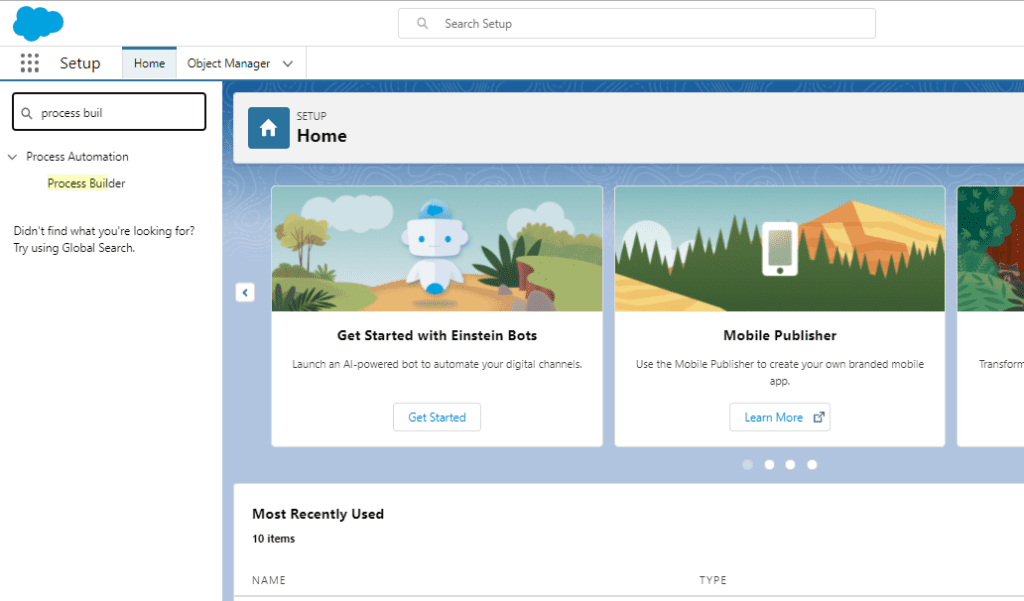
Step1: Log in to your Salesforce Org > Go to Setup > Search for Process Builder.


Screenshot 2021 09 16 202044

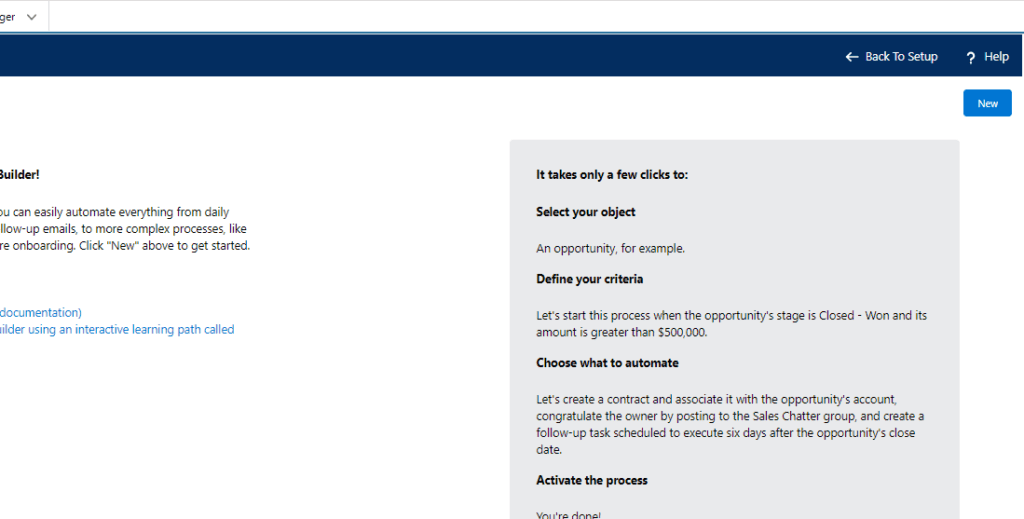
Step 2: Click on New to create a new Process Builder

Screenshot 2021 09 16 202608

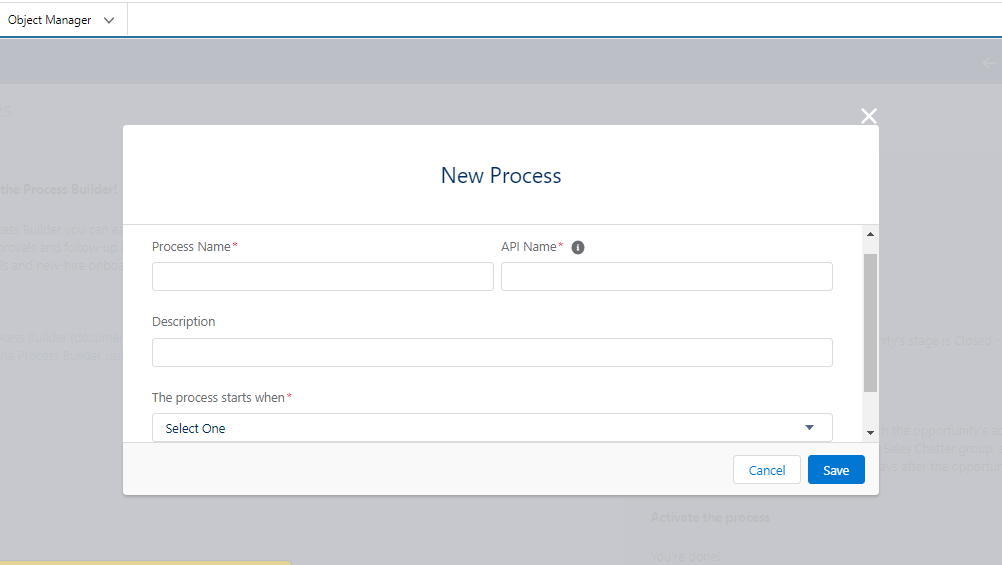
Step 3: Here we need to give our Process Name and Description, and decide on how to start process. For this, we will get three options as shown in the image below.

Screenshot 2021 09 16 203011


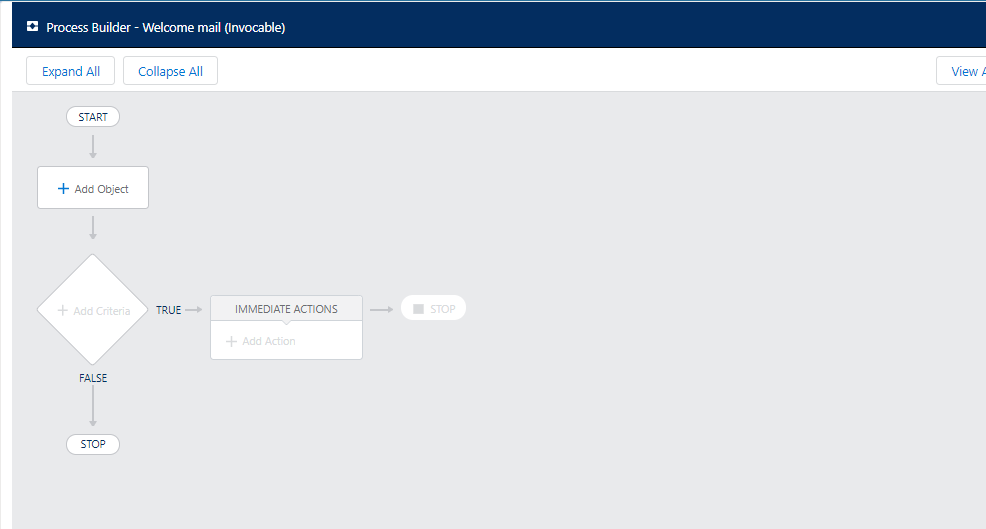
Step 4: Here we have to design a Flowchart based on what data is asked and if the criteria gets fulfilled the condition get Implemented.

  1. For The process starts when, select A record changes, and click Save.
  2. Click + Add Object.
  3. In the right window, select Account from the Object drop-down list.
  4. For Start the process select when a record is created or edited.
  5. Click Save. As shown in the screenshot.
Screenshot 2021 09 16 210058

Here we have Seen how to create a Process builder. In further blog we will be taking a use case to understand more about Process Builder.

Thank You

Happy Learning:)

READ MORE
Art & Illustration
TECHAvatar of adminadmin0 Comments
Share article:TwitterFacebookLinkedin
1603 Views
149 Likes

Workflow Rule in Salesforce

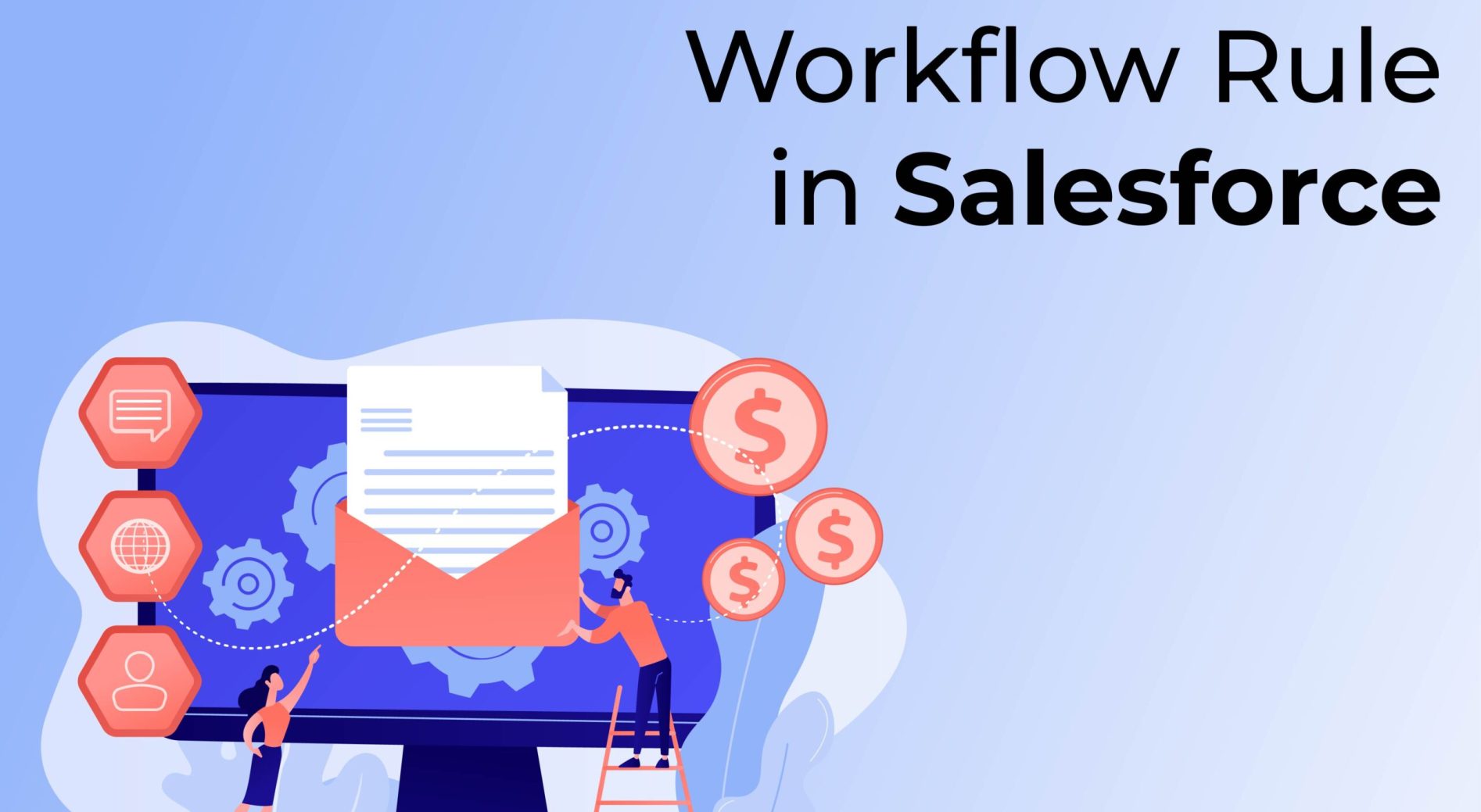
Workflow rules is one of the automated process in Salesforce that offers time-saving solutions to automate various business processes.

READ MORE
TECHAvatar of adminadmin0 Comments
Share article:TwitterFacebookLinkedin
1481 Views
138 Likes

Change Data Capture in Trigger

A salesforce app is a set or group of tabs that are used to create certain functionalities.

READ MORE
TECHAvatar of adminadmin0 Comments
Share article:TwitterFacebookLinkedin
1494 Views
148 Likes

How to create validation rule

Validation rules validate if the user entered data in a record meets the standards you define before the user can save or update the record.

READ MORE
  • 1
  • …
  • 7
  • 8
  • 9
  • 10
Recent Posts
  • How Salesforce Data Integration Tools Simplify Real-Time Business Connectivity
    In a nutshell, businesses collect operational data to perform...
  • Design, Build, and Optimize Agents with Agentforce 360 Innovations
    In this fast-moving digital world, businesses also want smarter...
  • Salesforce Built-In Payment Processing: How to Handle Everything End-to-End
    In the current digital economy, where online payments have...
  • Explore Top Salesforce Integration Challenges and Ways to Fix Them
    Integrating any system can be a difficult task, as an...
  • Protecting Sensitive Data: A Complete Guide to Encryption in Salesforce
    In the current digital economy, data can easily rank at the top...
logotype

We cater to individuals and corporates and provide IT training and certification programs.

44679 Endicott Drive Suit 300 #1046 Ashburn, VA 20147 United States

Phone: +1-571 989 9489

Email: atul.deo@quantoknack.com

Useful links

About Us

Contact Us

Blog

Courses

  • Live Salesforce Admin Training
  • Business Analyst
  • QA Testing Course
  • Advance JAVA Training
  • SQL Server Training
  • Live Salesforce Developer Training Certification Course
  • Digital Marketing
  • Oracle DBA Training

Subscribe

    Instagram Pinterest Linkedin
    Facebook
    Logo star

     2024 Quantoknack. All Rights Reserved